
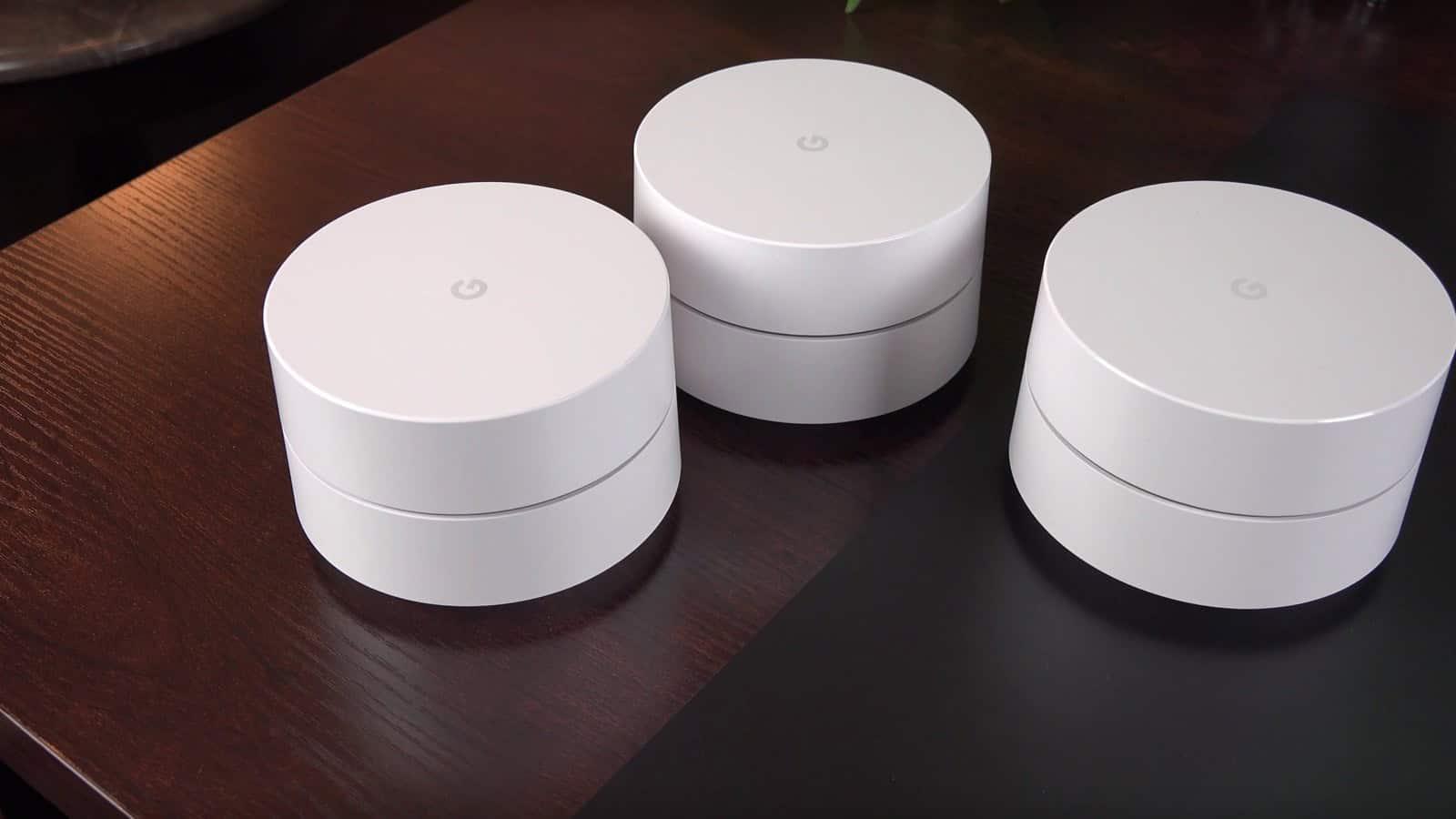
The short answer: on Android, install WiFi Analyzer (open-source) by VREM. It’s free, has no ads, asks for no internet permission, and its channel graph is the thing you actually came for. On iPhone, no App Store app can scan the networks around you, because Apple doesn’t allow it. The one exception is Apple’s own AirPort Utility, which hides a Wi-Fi scanner behind a switch in the Settings app. Everything else on iOS can only measure the network you’re already connected to. If you have a Mac or a Windows PC nearby, both have a proper scanner built in and I’d use that before any phone.
That split, Android can scan and iPhone can’t, is the fact every “best Wi-Fi analyzer” list glosses over. One of the iPhone apps sitting near the top of Google’s results for this search, at position two in a US capture from August 2, 2026, has reviewers complaining it won’t show signal strength. So before the picks, here’s what each platform can see.
| Platform | Can it list nearby networks, channels and signal? | Best free tool |
|---|---|---|
| Android | Yes, with Location permission granted | WiFi Analyzer (open-source), VREM |
| iPhone and iPad | Only through Apple’s AirPort Utility scanner. Third-party apps see only the connected network | AirPort Utility, Wi-Fi Scanner switched on |
| Mac | Yes, built in | Wireless Diagnostics, Scan window |
| Windows | Yes, built in, and a free Store app draws the graph | netsh wlan show networks mode=bssid, or WiFi Analyzer from the Microsoft Store |
Android: the open-source app is the one to install
VREM’s WiFi Analyzer shows 10M+ downloads on Google Play as of September 2, 2026, a 4.1 rating, and a last update on July 1, 2026. Its listing says it “does not require access to internet” and carries neither an ads flag nor an in-app purchase flag, which is rare in this category. The code is on GitHub under GPLv3, and its listing declares that it neither collects nor transmits personal or device information.
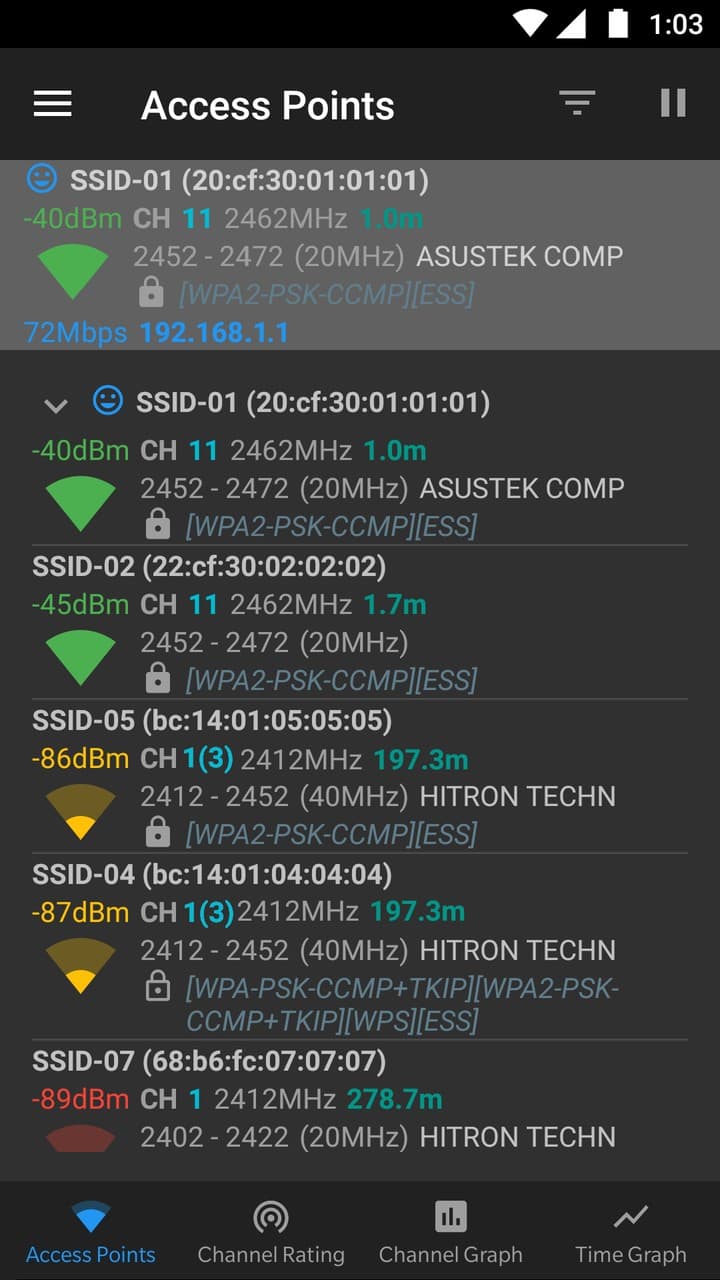
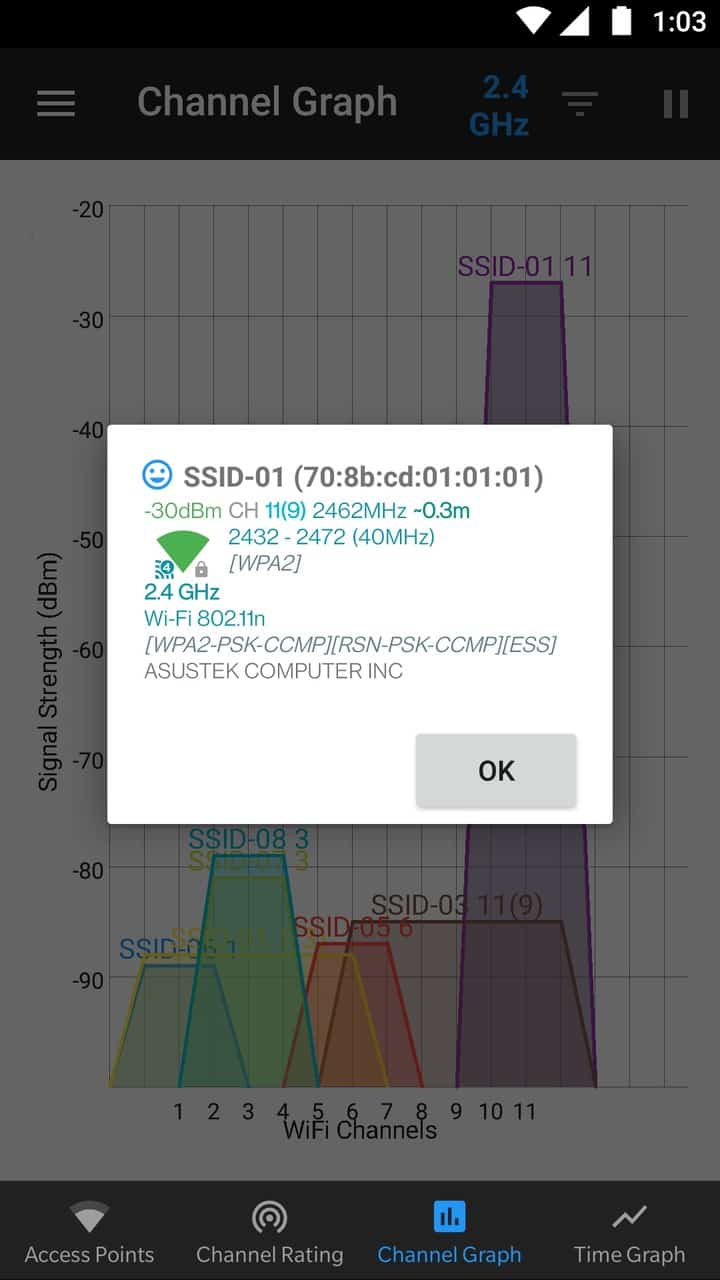
Four screens matter. Access Points lists everything in range with signal strength in dBm, where a number closer to zero is stronger, so -45 beats -80. Channel Graph draws each nearby network as a hump across the channel numbers, so you can see which channels are occupied and by how strong a signal. Two humps on the same channel share airtime; humps that partly overlap interfere with each other, which is worse; and anything that isn’t Wi-Fi, a microwave or a baby monitor, never shows on this graph at all. Channel Rating ranks the channels by how crowded they are, which is the screen to screenshot before you log into your router. Time Graph plots one network’s signal as you walk, which is how you find the dead corner of the house.
Two Android quirks trip people up, and both are Google’s doing. The app will ask for Location, and Location Services must be on for the whole phone. That isn’t the developer being nosy. Google’s Wi-Fi scanning documentation requires the fine-location permission for scan results, and has since Android 6, because the list of networks around you is itself a location. The second quirk is that the results update slowly. Android 9 and later throttle apps to four scans every two minutes, per the same page. If you want a live graph while you walk the house, the Play listing points to a developer option, Settings, then Developer options, then Networking, then Wi-Fi scan throttling, on Android 10 and later. Google’s documentation describes it as a switch for local testing. Turn it off for the walk, expect the battery to drain faster while it’s off, and turn it back on when you’re done. The VREM wiki warns that the wording and location vary by manufacturer.
The other Android names, and what each is for
- WiFi Analyzer by olgor.com. Also 10M+ downloads and a higher 4.6 rating, and it’s the one that ranks on Google. It does the same channel scan and adds a recommended-channel button, but it carries ads and in-app purchases. Fine if you prefer its look.
- WiFiman by Ubiquiti. Free and ad-free, shows SSID, BSSID, signal and channel, and adds a speed test. Its Android build hasn’t been updated since May 2025.
- NetSpot. The one to pay for if you want a heatmap drawn over a floor plan. The surrounding-network scan is free.
- Fing. A device scanner. It lists what’s on your own network, a different job we cover in how to see who’s connected to your Wi-Fi.
iPhone: why the App Store apps can’t scan, in Apple’s words
Apple has said this repeatedly on its own developer forums, most recently in June 2025, when an Apple engineer answered “Is it possible to scan for nearby WiFi networks” on iOS with one word: “No.” Apple’s technote on the subject, TN3111, puts it as “iOS does not have a general-purpose API for Wi-Fi scanning and configuration.” The one API that touches other networks, NEHotspotHelper, exists for hotspot operators, needs an entitlement Apple grants by hand, and the same engineer wrote back in 2018 that it “was not designed as a general-purpose Wi-Fi scanning API.”
So an iPhone app can read the network you’re joined to, its channel, its signal and its speed. It can list the devices on your LAN. It can run a ping. It cannot see the neighbors’ networks, which means it cannot tell you which channel is empty, and that’s the question a Wi-Fi analyzer exists to answer. NetSpot, which sells one of the better iOS apps, says so on its own iOS page: third-party apps can’t collect that data without an additional hardware device. Ubiquiti’s WiFiman for iPhone gets around it the same way, with a Bluetooth probe called the WiFiman Wizard that does the scanning for the phone.
The Apple loophole: AirPort Utility’s hidden scanner
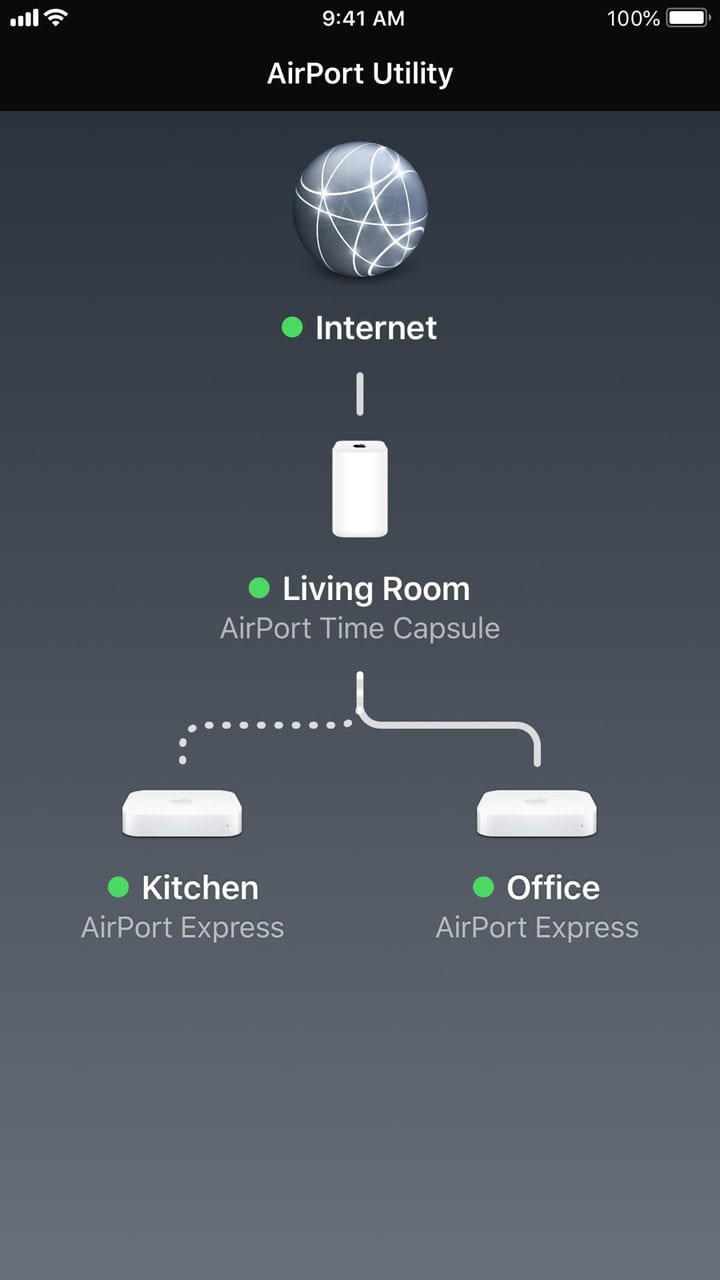
AirPort Utility is the app Apple shipped to manage its AirPort routers, which it stopped selling in 2018. The app is still on the App Store, version 1.3.6, last updated in October 2019, and it requires iOS 9 or later. Inside it is a Wi-Fi scanner that lists every network in range with its name, its BSSID, its signal in dBm and its channel, because Apple’s own app is allowed to use the interface Apple denies everyone else.
The switch isn’t in the app. Open the Settings app, tap Apps, find AirPort Utility, and turn on Wi-Fi Scanner. On iOS 26 the per-app settings all live under Apps; on older versions AirPort Utility sits in the main Settings list. Then open AirPort Utility and tap Wi-Fi Scan in the top right. You pick a duration from 10 to 60 seconds or leave it continuous, tap Scan, and the list fills. Turn the switch back off when you’re done, because it keeps the radio busy. That path comes from Apple Community members and network engineers who use it. Apple’s support site rewrote the page that once described the scanner, so the app’s own listing and those walkthroughs are the documentation now. Wireless LAN Professionals’ 2026 field guide still lists it as the only app Apple lets touch the raw scan, and notes Apple hasn’t materially updated the app in years. Nobody I found has written up a test on iOS 26 specifically, so treat it as working until Apple pulls it, and check the App Store reviews the day you need it.
The iPhone app I mentioned at the top, “Wifi Analyzer Network Analyzer”, last shipped an update in 2022, sells weekly subscriptions, and does device discovery, ping and traceroute. A reviewer on its own listing writes that they expected it to show Wi-Fi signal strength and “It does not.” The platform, and every app on it, has that limit.
Mac and Windows already have a scanner
If the reason you wanted an app was to pick a better channel for your router, a laptop does it better than a phone, because you can leave it on the desk next to the router.
Mac. Hold the Option key and click the Wi-Fi icon in the menu bar, then choose Open Wireless Diagnostics. That’s the step Apple documents in its Mac User Guide. Ignore the assistant that opens. In the menu bar, open the Window menu and choose Scan. The pane on the left names the best 2.4 GHz and best 5 GHz channels for where you’re sitting, and the table on the right lists every network with its channel, signal and noise. Apple’s page stops at opening the tool, so the Scan window is documented by people who use it, including Motorola’s own support site, and it’s been there since macOS Yosemite.
Windows. Open Command Prompt as administrator (search for it, right-click, Run as administrator) and run:
netsh wlan show networks mode=bssidMicrosoft’s wireless troubleshooting guide, updated July 2026, says the mode=bssid option adds the BSSID, signal strength, channel and radio type for every network in range. If it comes back with nothing or an access error, Windows 11 gates nearby-network information behind Location. Turn it on under Settings, Privacy & security, Location, and run it again. If you’d rather see a graph, the free WiFi Analyzer by Matt Hafner on the Microsoft Store draws the same channel humps as the Android app.
How to read what the scanner tells you
On 2.4 GHz in the US, the only channels that don’t overlap are 1, 6 and 11. The channels are 20 MHz wide and their centers sit 5 MHz apart, so a network on channel 3 smears across 1 and 6 both. MetaGeek’s training page, now hosted by Oscium, and Cisco Meraki’s channel-planning guide both say the same thing, and both are written for the US 11-channel plan. Outside the US your router may offer channels up to 13 and the non-overlapping set differs, so follow your regulatory domain and the app’s channel rating there. Counting the networks on each of 1, 6 and 11 is the first pass. Then look at how strong each hump is and how wide, because one strong neighbor on a 40 MHz channel costs you more than three faint ones, and retest your speed after you change the router. Never pick 4 because it looks free.
On 5 GHz, some channels are shared with weather and airport radar, the DFS channels, and Meraki’s guide notes that an access point which hears radar must stop using that channel and pick another. Your router will do the same, so a DFS channel can look perfect tonight and drop you at 3 a.m. Your scanner usually labels them DFS, and it’s the channel number that tells you, since an empty stretch of channels can be empty for other reasons. They’re still worth trying. A 6 GHz band will only show up if the scanner and the phone’s radio support it and something nearby is actually broadcasting on 6 GHz, which depends on your region too. The Wi-Fi Alliance’s 6 GHz announcement covers what that band gives you.
One more thing the graph can tell you. If your own network’s hump is short even when you’re standing next to the router, the analyzer isn’t the fix. Start with Wi-Fi that keeps disconnecting, and if the problem is a far room, an extender that isn’t working is usually one that was placed wrong.
Which to open first
With an Android phone in your pocket, open VREM’s app and go to the Channel Rating tab. With an iPhone and nothing else, go to Settings, Apps, AirPort Utility, switch Wi-Fi Scanner on, and expect a plain list without a graph. With any laptop within reach, use the laptop. I’d keep the Android app for walking the house and do the channel choice on the Mac, because a phone in one hand shows you three numbers at a time and the Scan window shows them all at once.

A tech Journalist and Photographer, Dhawal Sharma is a technology enthusiast who loves to research the latest innovations and technology. He has contributed to the Honor Community for a very long period and has crucial expertise in writing tech news and reviewing smartphones and laptops. Analyzing and bringing the facts about any piece of tech is what he loves the most. He is a great product photographer and is the Gizmopedia of TheLeaker. Find him on Facebook and Instagram, and you can also email him at [email protected].